> ## Documentation Index
> Fetch the complete documentation index at: https://support.angellist.com/llms.txt
> Use this file to discover all available pages before exploring further.
# Settings
> Breaking down your settings page
## Navigating the Settings Page
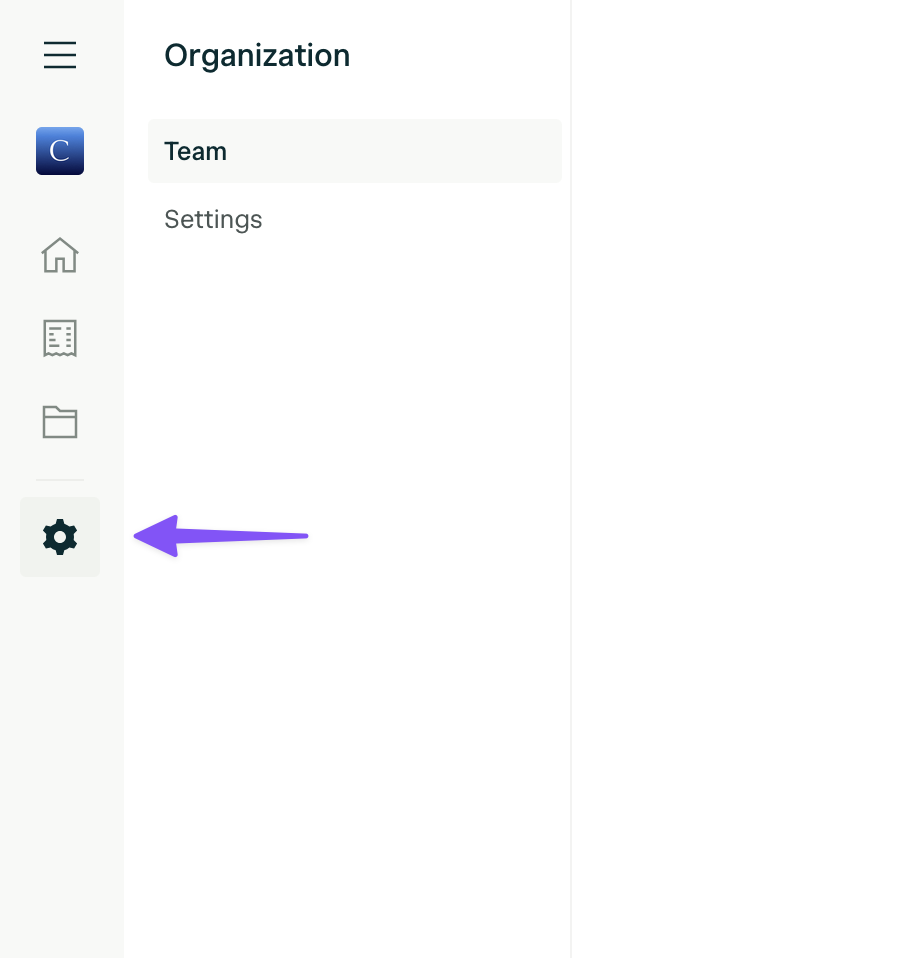
To access your settings:
* Click the **gear icon** on the bottom of the left-sidebar.
* This will take you to your **Organization Settings.**
 ## Managing Your Team
### Access the Team tab
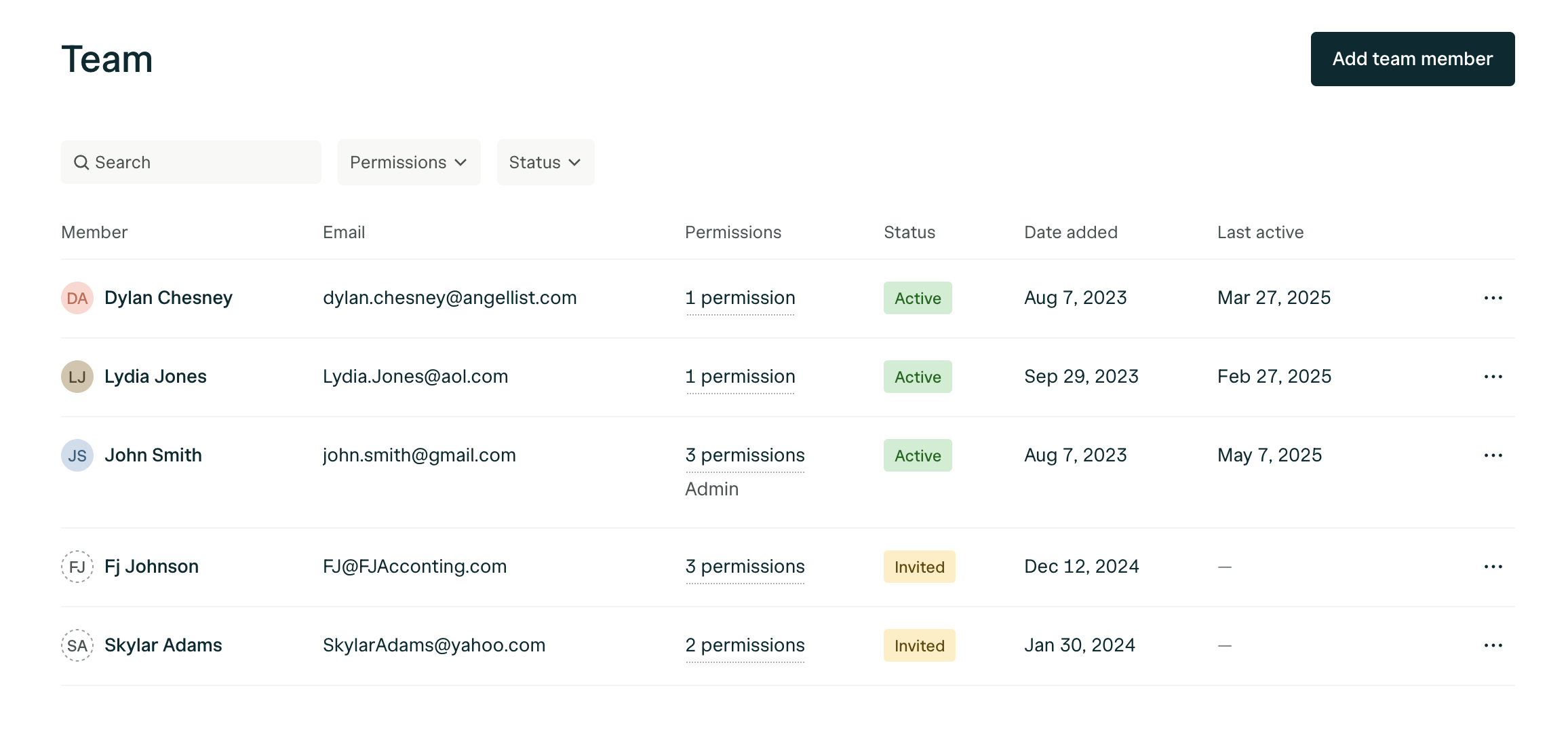
* Navigate to the **Team** tab within your settings.
* This section displays all the teammates you’ve invited to your **Organization**—a group of all your associated entities.
## Managing Your Team
### Access the Team tab
* Navigate to the **Team** tab within your settings.
* This section displays all the teammates you’ve invited to your **Organization**—a group of all your associated entities.
 ### **Add or Edit Team Members**
You can:
* **Invite new teammates** by clicking **Add Teammate**.
* Assign or update the following permissions for each team member:
* **Team Management**: Can add or manage other teammates.
* **Investor Portal Access**: Can view subscription documents, tax forms, legal docs, investor communications, and more.
* **Authorized Signatory**: Can sign legal documents on behalf of the organization.
### **How to Make Someone an Authorized Signatory**
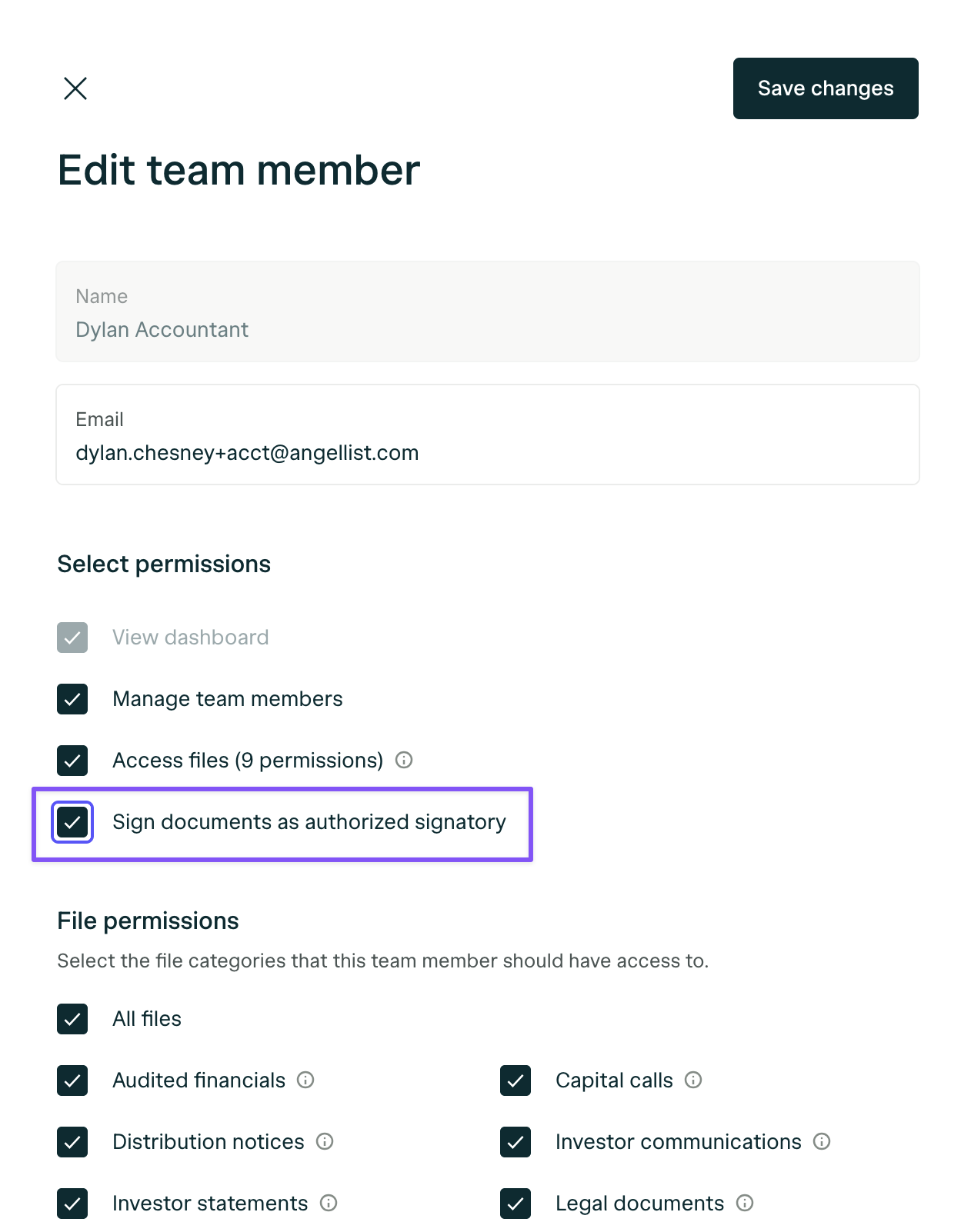
An **Authorized Signatory** can sign subscription agreements, legal documents, and other important investor materials on behalf of your organization.
1. Go to the **Team** tab in Settings.
2. Click the **three-dot menu** next to a teammate’s name.
3. Select **Edit Details**.
4. Toggle the **Authorized Signatory** switch and save changes.
### **Add or Edit Team Members**
You can:
* **Invite new teammates** by clicking **Add Teammate**.
* Assign or update the following permissions for each team member:
* **Team Management**: Can add or manage other teammates.
* **Investor Portal Access**: Can view subscription documents, tax forms, legal docs, investor communications, and more.
* **Authorized Signatory**: Can sign legal documents on behalf of the organization.
### **How to Make Someone an Authorized Signatory**
An **Authorized Signatory** can sign subscription agreements, legal documents, and other important investor materials on behalf of your organization.
1. Go to the **Team** tab in Settings.
2. Click the **three-dot menu** next to a teammate’s name.
3. Select **Edit Details**.
4. Toggle the **Authorized Signatory** switch and save changes.
 ### **Removing a Team Member**
To remove someone from your team:
* Please email [**portal@angellist.com**](mailto:portal@angellist.com) and include the name and email of the person you’d like to remove.
## **Editing Organization Settings**
In the main **Settings** page, you can:
* **Edit your Organization name**:
* This name appears in invite emails sent to new teammates.
* It should reflect your collective group of entities.
* **Upload a square logo (avatar)**:
* This logo will appear in team invite emails.
* For best results, use a high-quality, square image.
### **Removing a Team Member**
To remove someone from your team:
* Please email [**portal@angellist.com**](mailto:portal@angellist.com) and include the name and email of the person you’d like to remove.
## **Editing Organization Settings**
In the main **Settings** page, you can:
* **Edit your Organization name**:
* This name appears in invite emails sent to new teammates.
* It should reflect your collective group of entities.
* **Upload a square logo (avatar)**:
* This logo will appear in team invite emails.
* For best results, use a high-quality, square image.