> ## Documentation Index
> Fetch the complete documentation index at: https://support.angellist.com/llms.txt
> Use this file to discover all available pages before exploring further.
# Updating Reference Documents
> How to upload, edit, and remove reference documents like PPMs, LPAs, etc
**Reference items** are the non-fillable documents (or links) that you can make available for your investors to view and download while they are completing a Transaction. You can add as many documents as you want, as well as edit or remove existing ones through the Template's *Processes* tab. Here are the steps on how:
Click into a specific Template and it will open up to the *Processes* tab by default
On the right side, you can take action on any Reference Items.
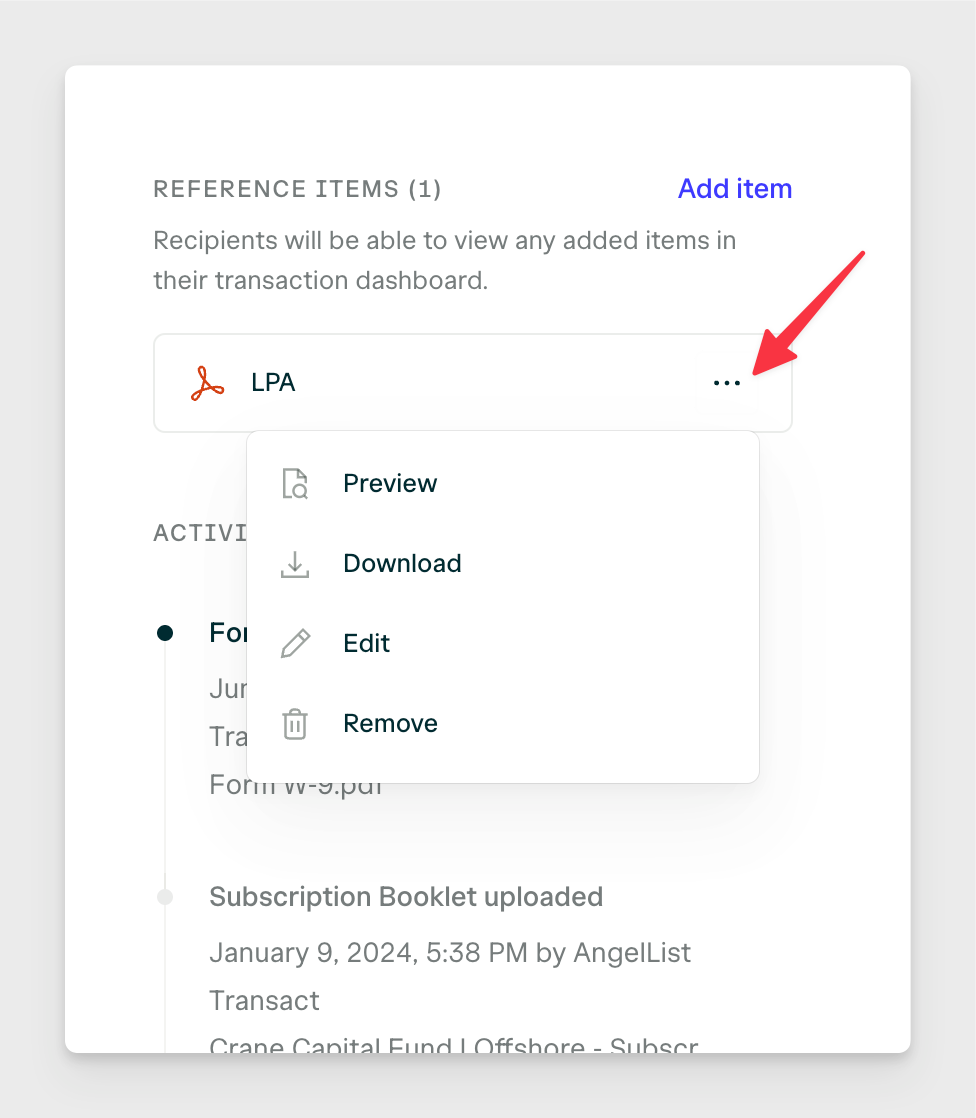 *Editing* an item will allow you to delete, preview, or re-upload a new file to replace it.
To replace it, you may either re-upload a new file or search through existing files across your Organization.
You may also opt to replace the document with an external link.
Clicking on *Add item* will provide you with the same options as above, except for a new reference item.
If you want to see where and how your reference items appear, you can preview your Templates via this guide: [How to preview your Template as a specific investor type ](/transact/templates/template-previewing)
*Editing* an item will allow you to delete, preview, or re-upload a new file to replace it.
To replace it, you may either re-upload a new file or search through existing files across your Organization.
You may also opt to replace the document with an external link.
Clicking on *Add item* will provide you with the same options as above, except for a new reference item.
If you want to see where and how your reference items appear, you can preview your Templates via this guide: [How to preview your Template as a specific investor type ](/transact/templates/template-previewing)