> ## Documentation Index
> Fetch the complete documentation index at: https://support.angellist.com/llms.txt
> Use this file to discover all available pages before exploring further.
# Set Up Custom CTAs
> Guide for adding call-to-action buttons that link to subscription flows or your website.
## **Setting Up CTA Buttons**
1. **Navigate to the Access tab** in your Data Room.
2. Select the **Permission Group** you want to edit.
3. Click the **Buttons** dropdown to enable and configure CTAs.
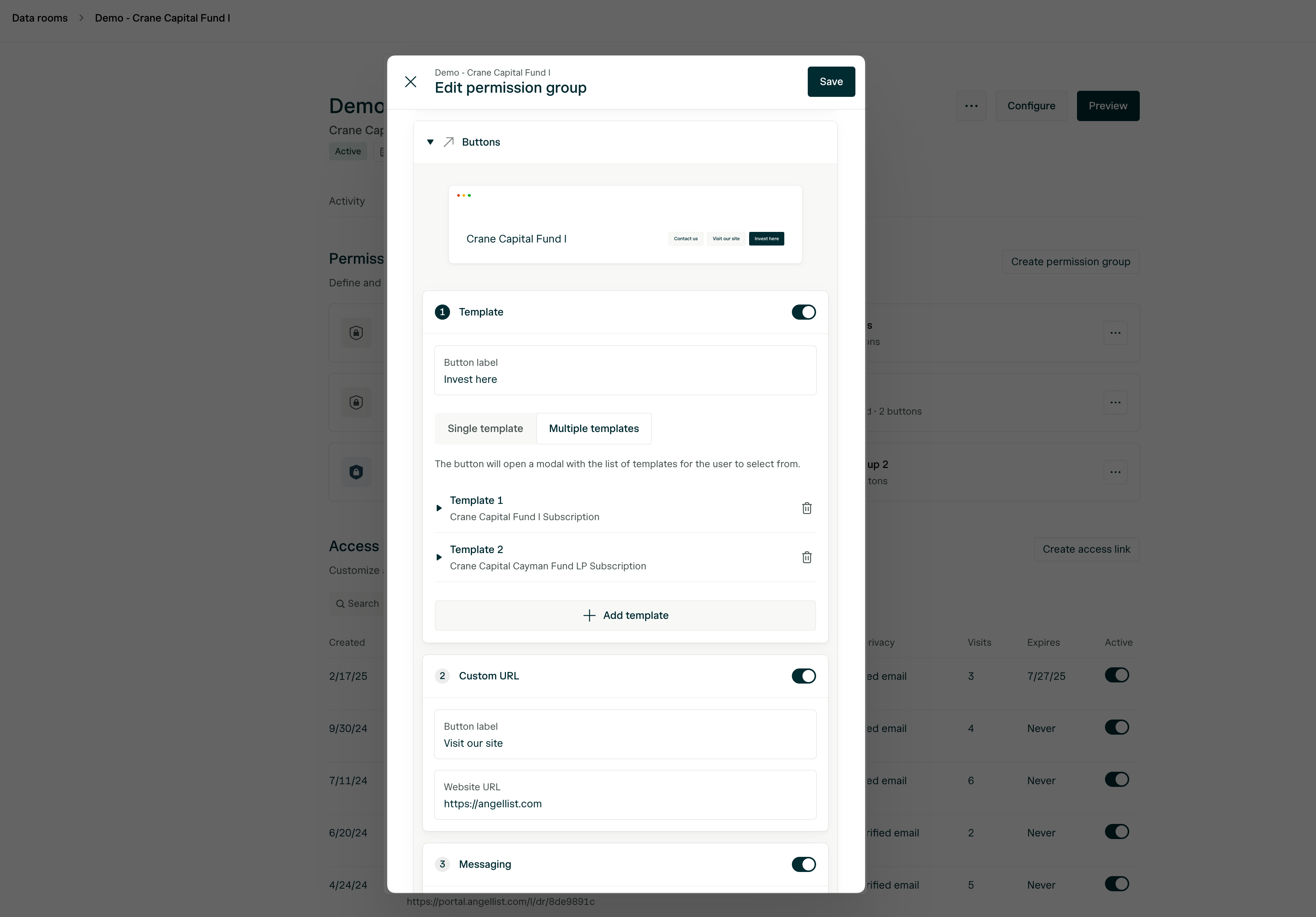 ### You can choose from the following three CTA types:
This option allows investors to launch Digital Subscription flows directly from the Data Room.
* **To see your Templates appear**, you must first associate the appropriate **Vehicles** in the **Settings tab**.
*
* You can connect **multiple Templates per Vehicle** (e.g., offshore, onshore, and tax-exempt).
Direct investors to any external webpage (e.g., your website).
* Pre-load an email link to a designated contact (e.g., operations email, Head of IR, etc).
You can customize the **labels** for each CTA to match the context for your LPs.
After configuring your buttons, **hit Save**—and you’re done!
## **What Investors See**
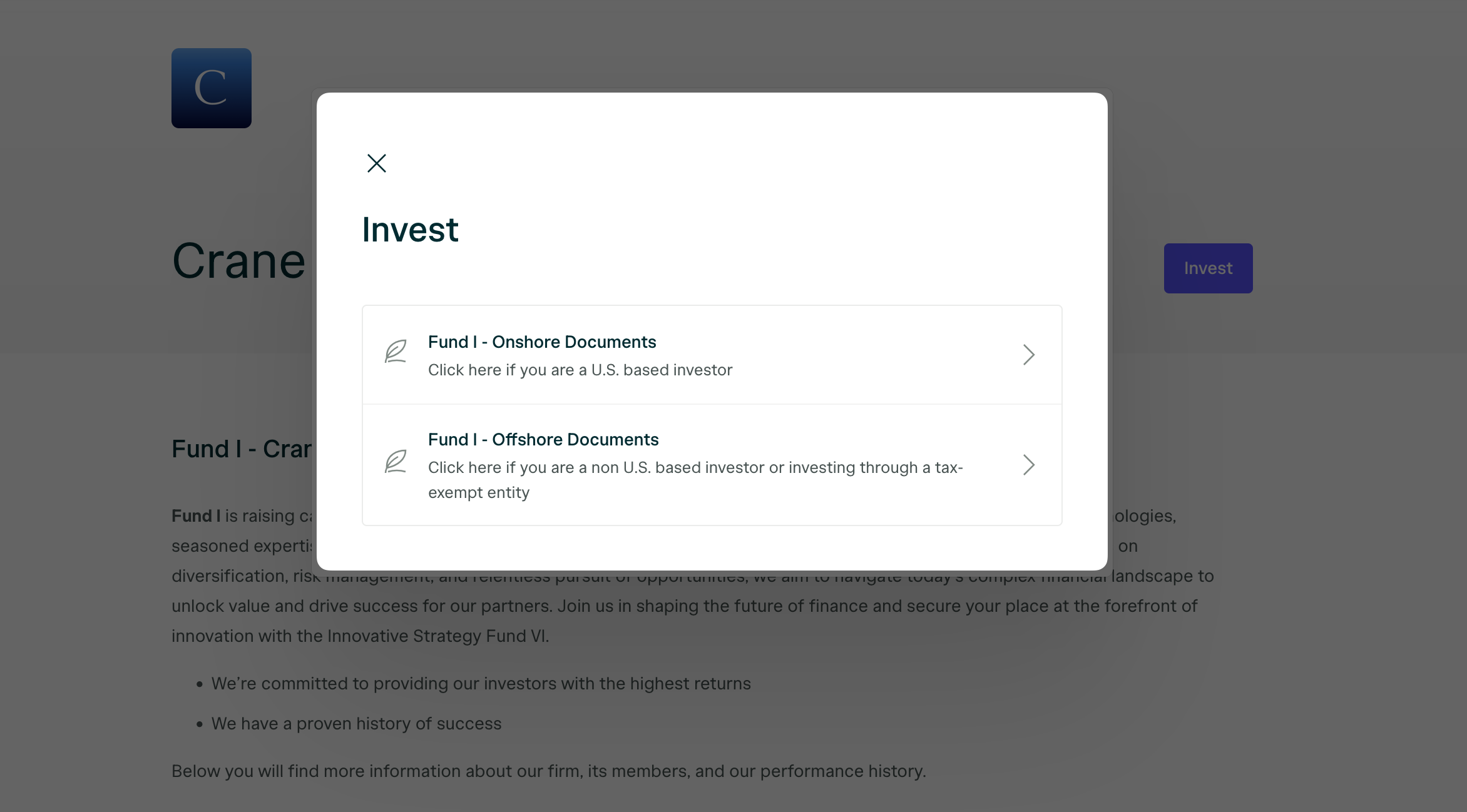
Once set up, investors will see your CTA buttons in the Data Room based on the **Permission Group they belong to**. Here’s an example of what it looks like:
### You can choose from the following three CTA types:
This option allows investors to launch Digital Subscription flows directly from the Data Room.
* **To see your Templates appear**, you must first associate the appropriate **Vehicles** in the **Settings tab**.
*
* You can connect **multiple Templates per Vehicle** (e.g., offshore, onshore, and tax-exempt).
Direct investors to any external webpage (e.g., your website).
* Pre-load an email link to a designated contact (e.g., operations email, Head of IR, etc).
You can customize the **labels** for each CTA to match the context for your LPs.
After configuring your buttons, **hit Save**—and you’re done!
## **What Investors See**
Once set up, investors will see your CTA buttons in the Data Room based on the **Permission Group they belong to**. Here’s an example of what it looks like: