> ## Documentation Index
> Fetch the complete documentation index at: https://support.angellist.com/llms.txt
> Use this file to discover all available pages before exploring further.
# Connecting Digital Subscription Templates to Your Data Room
> Learn how to integrate Digital Subscriptions and customizable CTAs (Call to Action buttons) into your Data Room, giving investors seamless access to subscription templates, external sites, or email outreach.
You can customize your Data Room to include up to three different Call to Action (CTA) button types per Permission Group—allowing investors to access Digital Subscription templates, visit a specific website, or reach out via email.
## **Setting Up CTA Buttons**
1. **Navigate to the Access tab** in your Data Room.
2. Select the **Permission Group** you want to edit.
3. Click the **Buttons** dropdown to enable and configure CTAs.
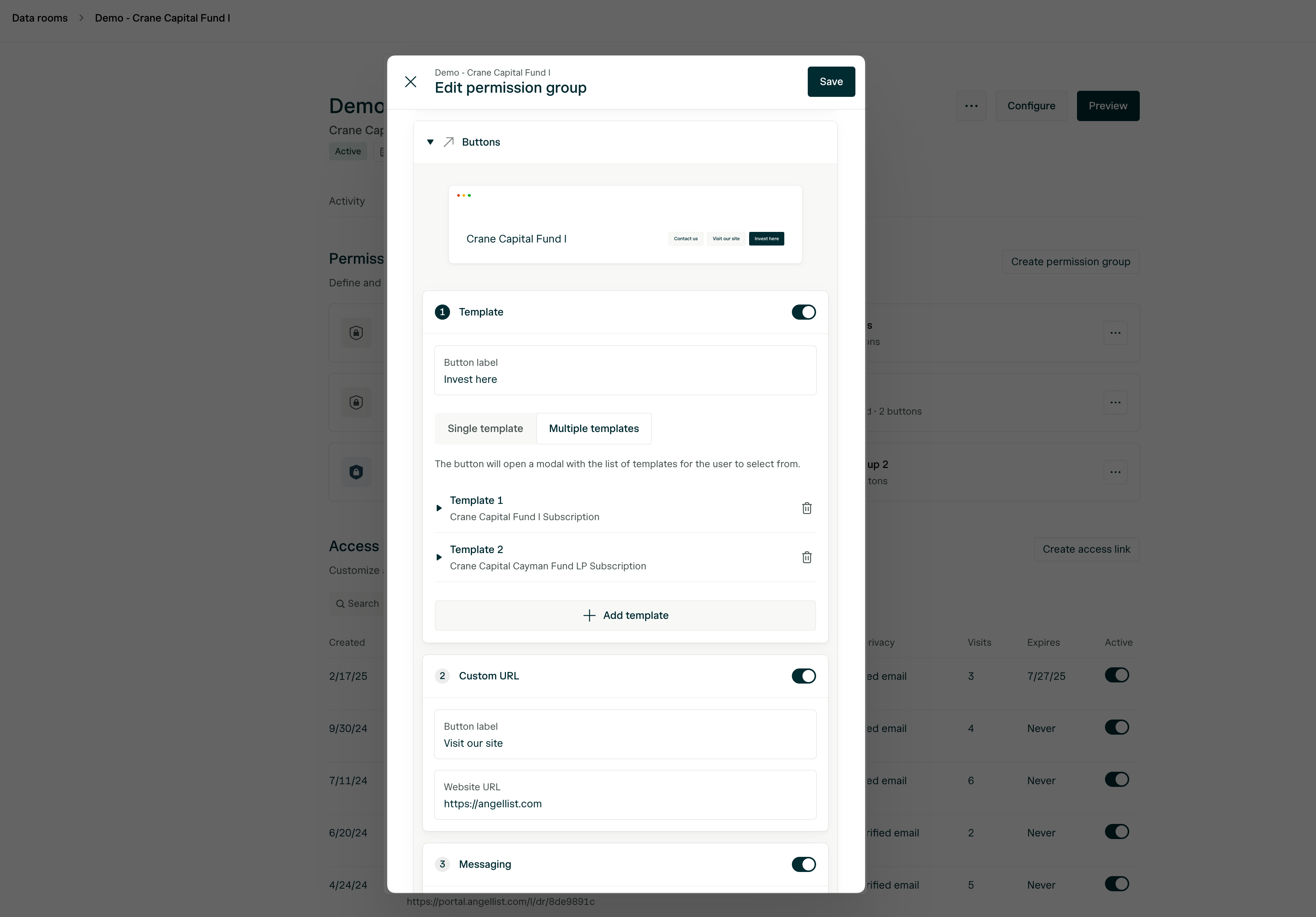 ### You can choose from the following three CTA types:
This option allows investors to launch Digital Subscription flows directly from the Data Room.
* **To see your Templates appear**, you must first associate the appropriate **Vehicles** in the **Settings tab**.
*
* You can connect **multiple Templates per Vehicle** (e.g., offshore, onshore, and tax-exempt).
Direct investors to any external webpage (e.g., your website).
* Pre-load an email link to a designated contact (e.g., operations email, Head of IR, etc).
You can customize the **labels** for each CTA to match the context for your LPs.
After configuring your buttons, **hit Save**—and you’re done!
## **What Investors See**
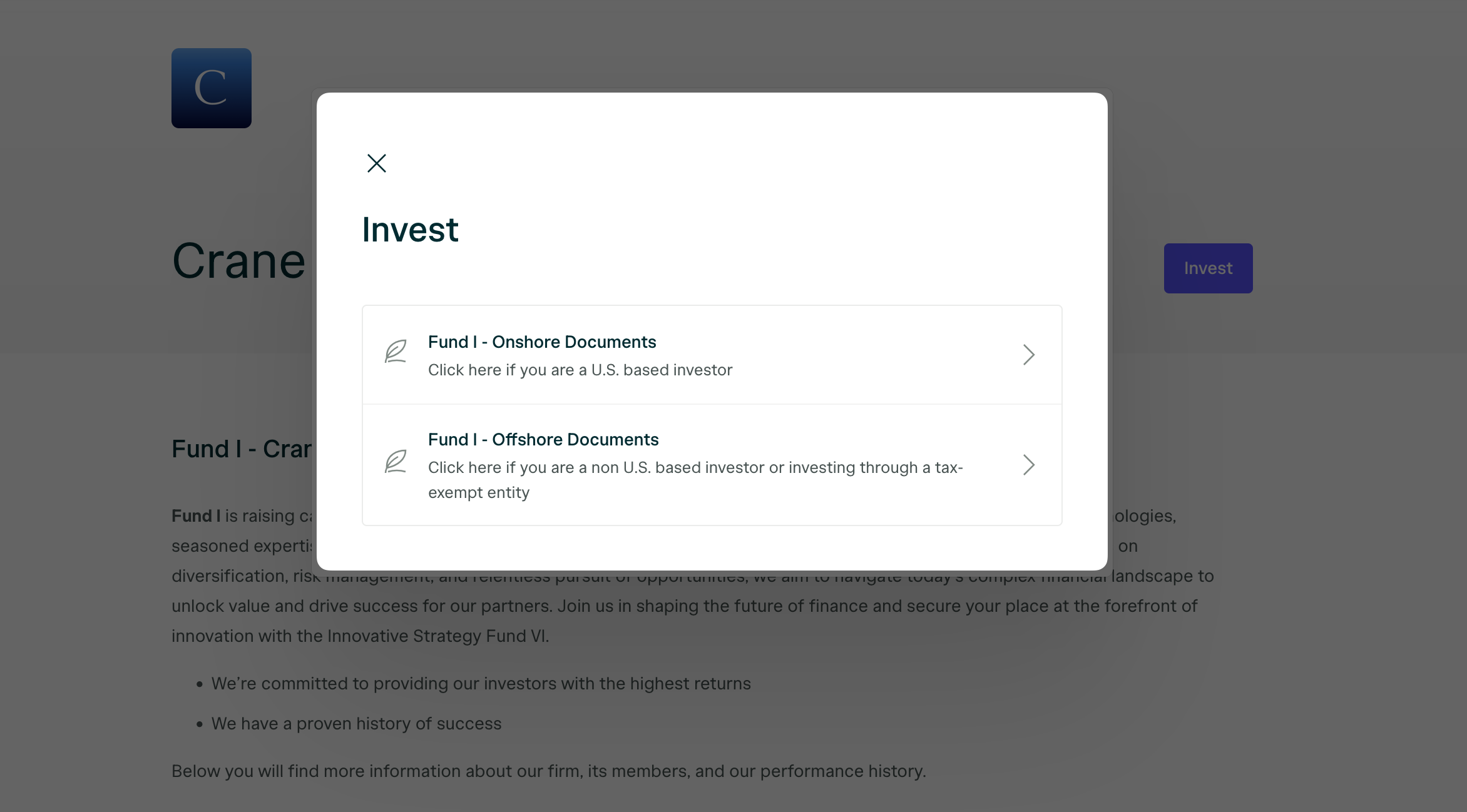
Once set up, investors will see your CTA buttons in the Data Room based on the **Permission Group they belong to**. Here’s an example of what it looks like:
### You can choose from the following three CTA types:
This option allows investors to launch Digital Subscription flows directly from the Data Room.
* **To see your Templates appear**, you must first associate the appropriate **Vehicles** in the **Settings tab**.
*
* You can connect **multiple Templates per Vehicle** (e.g., offshore, onshore, and tax-exempt).
Direct investors to any external webpage (e.g., your website).
* Pre-load an email link to a designated contact (e.g., operations email, Head of IR, etc).
You can customize the **labels** for each CTA to match the context for your LPs.
After configuring your buttons, **hit Save**—and you’re done!
## **What Investors See**
Once set up, investors will see your CTA buttons in the Data Room based on the **Permission Group they belong to**. Here’s an example of what it looks like: